





Setup Requirements
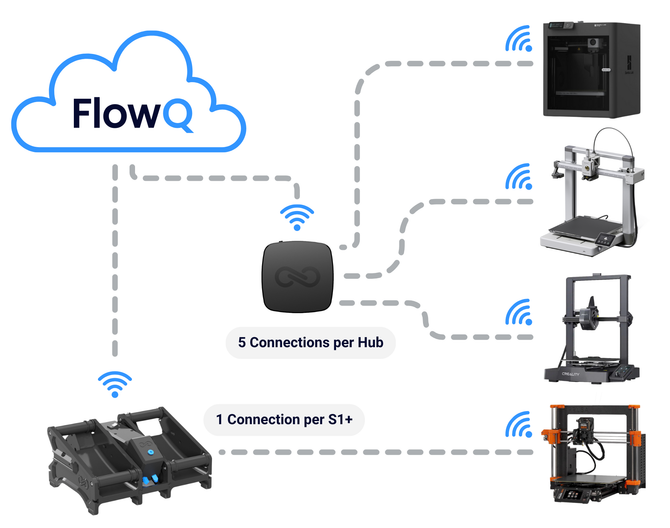
Connect to your 3D Printer's using an S1+, Hub, or your computer via FlowQ Connect.

FlowQ Tunnel (Hub, S1+, or Computer)
Connect to your 3D Printer's using an S1+ Hub, or a computer running FlowQ Connect.

Compatible 3D Printer(s)
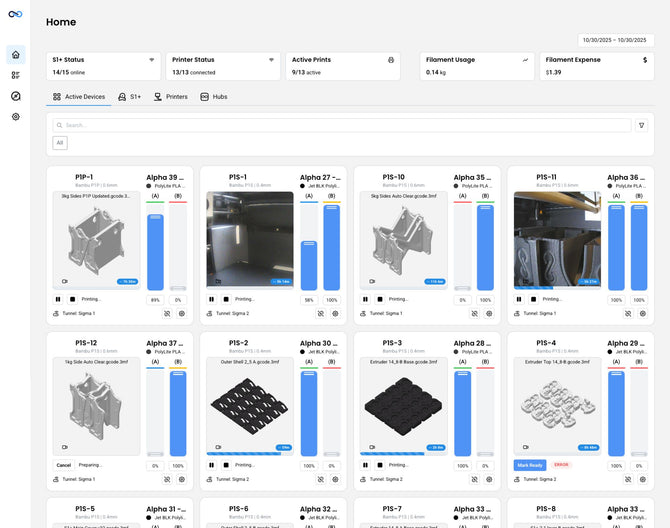
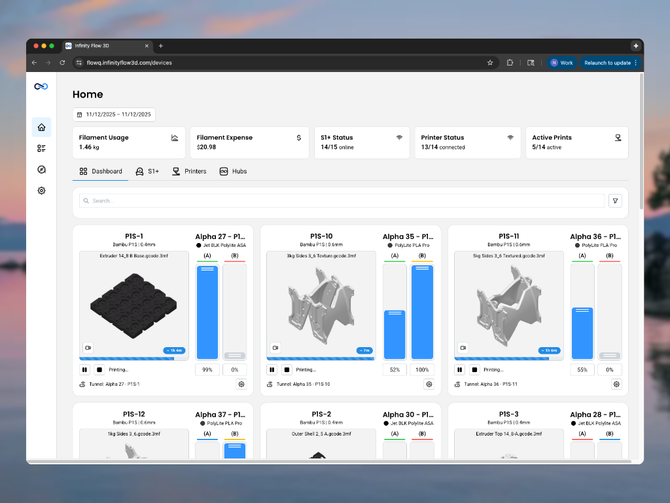
FlowQ supports mixed printer fleets. Manage all supported printers from a single dashboard.

FlowQ Account
Sign up for FlowQ and start connecting your 3D Printers. No credit card required.
How to Setup FlowQ
A simple, secure setup that typically takes less than 5 minutes to complete.

Step 1: Create an Account
You can use FlowQ completely free — no credit card required. All queue and automation features are included on the Free Plan.
Free plan usage limits reset every month.

Step 2: Setup a Connection Method
Connect an S1+, FlowQ Hub to your local Wi-Fi network or use your computer with FlowQ Connect.
ℹ️ Wi-Fi credentials are stored locally on the device and are never exposed to the cloud or the internet.

Step 3: Connect 3D Printers & Upload Print Files
Connect a 3D printer by entering its local IP address and any required credentials.
Upload your sliced print files to the FlowQ central files system.
Files are automatically sent to printers as needed and shared across all your machines.

Step 4: Create Your Print Queue & Start Printing
Create a print queue and start printing across your entire fleet.
Setup print looping and auto-restart for printers with print-ejection systems.
Integrate with 8,000+ apps via Zapier, Make, and the flowQ API to build custom workflows, such as adding prints to the queue when an online order is received.
Upgrade your 3D Print Farm
Trusted by print farm operators looking for a simpler, more reliable way to run production.
Additional Resources

Installing FlowQ Connect using Terminal (Headless Linux Setup)
Install FlowQ Connect on a Raspberry Pi or Linux device using the terminal. This guide shows how to set up...

Connecting Printers with FlowQ Connect
Connect 3D Printers to FlowQ using just your computer, no hardware required. This guide shows how to install FlowQ Connect,...

FlowQ + Farmloop for Fully Automated 3D Printer Fleets
Step-by-step guide to automating a 3D print farm. Use FarmLoop for part ejection and FlowQ to manage print queues and...
3D Printer Automation Guides

A1-mini Bed Swap Kit 2.0 - Assembly & Setup
How to build a bed swap 2.0 system for your Bambu A1 mini. This guide covers hardware setup, Bambu Studio...

A1 Bed Swap Kit 2.0 - Assembly & Setup
How to build a bed swap 2.0 system for your Bambu A1. This guide covers hardware setup, Bambu Studio configuration,...

3D Printer Auto Bed Clearing - (Bambu A1 Example)
Turn your Bambu A1 into a self-clearing machine using just a few lines of G-code. This guide walks you through...
FlowQ Automation Workflows

Add Shopify Order Items to Queue
Learn how to automatically add print files to your FlowQ Queue when a Shopify order is placed using Zapier. This...
Frequently Asked Questions
Answers to some of our most common questions.
